Guides
How to run the same edit on a folder of photos
Drop a folder into PicZero. Compression, conversion, crop and watermark settings apply to every file. The originals stay where they were.
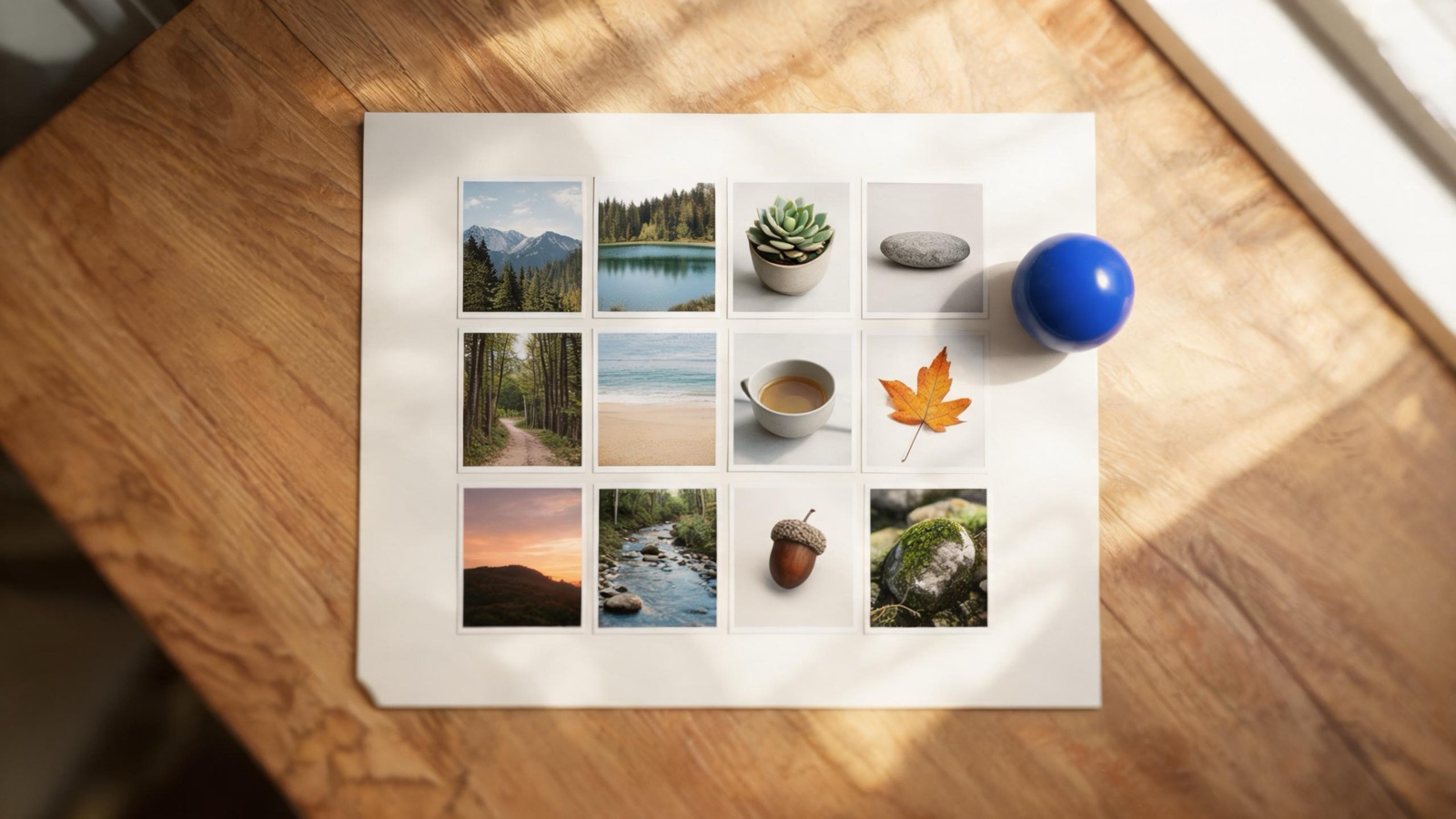
A folder of photos usually needs one choice applied many times: one quality, one format, one crop, one watermark. PicZero keeps the files you added as a list in the current tab, so you do not repeat that choice on every image.
A folder is not an upload
Dropping a folder, or choosing many files, gives the browser permission to read them. Processing happens on this machine. MSH's servers do not receive the file bytes, and there is no queue, account, or usage cap. The same rule covers a single compress or format conversion.
The list lives in this tab. Until you download, a result is not a file on disk. Close the page and undownloaded results are gone. The originals already in the folder are untouched.
One image, then the rest
Set the options on the first image and check two things: whether the size meets the receiver's limit, and whether edges and text still hold. The compress page shows the size before and after. A quality of 70% that suits a landscape can blur a screenshot of an interface. A portrait crop placed on a wide photo cuts the sides off. If the first image is wrong, change the setting. Do not run two hundred files first.
After that check, the same settings apply to the rest of the list. Rename rules are shared too, so you do not download a hundred files with one name.
What can be batched, and what cannot
Parameters can be shared: compress quality and target kilobytes, convert format, quality, and flatten color, plus crop, rotate, and watermark. What you draw cannot. Cutout keep and erase strokes stay on the current photo. See cut out locally. The same is true of doodles and mosaic. Settings fan out. Strokes have to be judged one image at a time.
The original is still there when you download
Save one new file, or a zip of many. Compress names its archive compressed-images.zip. Convert names its archive converted-images.zip. Put the new files beside the originals and replace your own archive only when you mean to. PicZero does not write back to the path you dragged in.
In the same tab, a result can move to the next tool without another pick from disk. If the folder only has a size problem, stop at compress. If the receiver also requires JPG or WebP, continue with format conversion.
How to do it
- Open a tool that keeps a list, such as compress at https://msh.zone/image/compress or convert.
- Drop the folder in, or choose several files. The page receives permission to read them, not an upload.
- Set quality, format, crop, or watermark on the first image and check its size and edges.
- Apply that same setup to the rest of the list only after the first result looks right.
- Painted work, including cutout brushes, stays on the current image. It does not tile across the folder.
- Download the new files or a zip beside the originals. The tool does not overwrite the folder.
Questions
Does a folder upload get sent to a server?
No. The browser reads the files you chose and processes them locally. They are not posted to MSH, and there is no account.
Are the originals replaced?
No. Downloads are new files. Several images can be saved as a zip, such as compressed-images.zip from compress or converted-images.zip from convert. The copies in the folder are unchanged.
Which settings are shared?
Quality, target size, output format, crop, rotate, watermark, and rename rules are shared. Strokes you paint, including cutout brushes, stay on the current image.
Why check one image first?
A quality that looks fine on a landscape can crush text in a screenshot. A crop framed for a portrait cuts the sides off a wide photo. Stop if the first result is wrong, change the setting, then run the rest. The page shows size before and after.
Do I pick the files again for the next tool?
No. Results can stay in the list in this tab and move on to compress, convert, crop, or watermark. Close the tab and the list is gone. Only files you downloaded remain on disk.
What happens with a large batch?
Images are processed one by one on this machine, with progress on the page. A slower computer and larger photos take longer. That wait is not an upload queue. Change the setting before the rest of the batch if the first image is wrong.
Guides
How to compress images without uploading them
Open PicZero's compress page and drop the image in. The browser re-encodes it on your device. The file is not sent to a server.
How to convert image formats locally
PicZero converts JPG, PNG, WebP and AVIF in the browser. Pick the format for the job, preview the size, and download. The image is not uploaded.
How to remove an image background without uploading it
PicZero's cutout runs in the browser. It separates the subject, lets you fix the edge, and exports a transparent PNG or WebP. The photo is not uploaded.