Guides
How to compress images without uploading them
Open PicZero's compress page and drop the image in. The browser re-encodes it on your device. The file is not sent to a server.
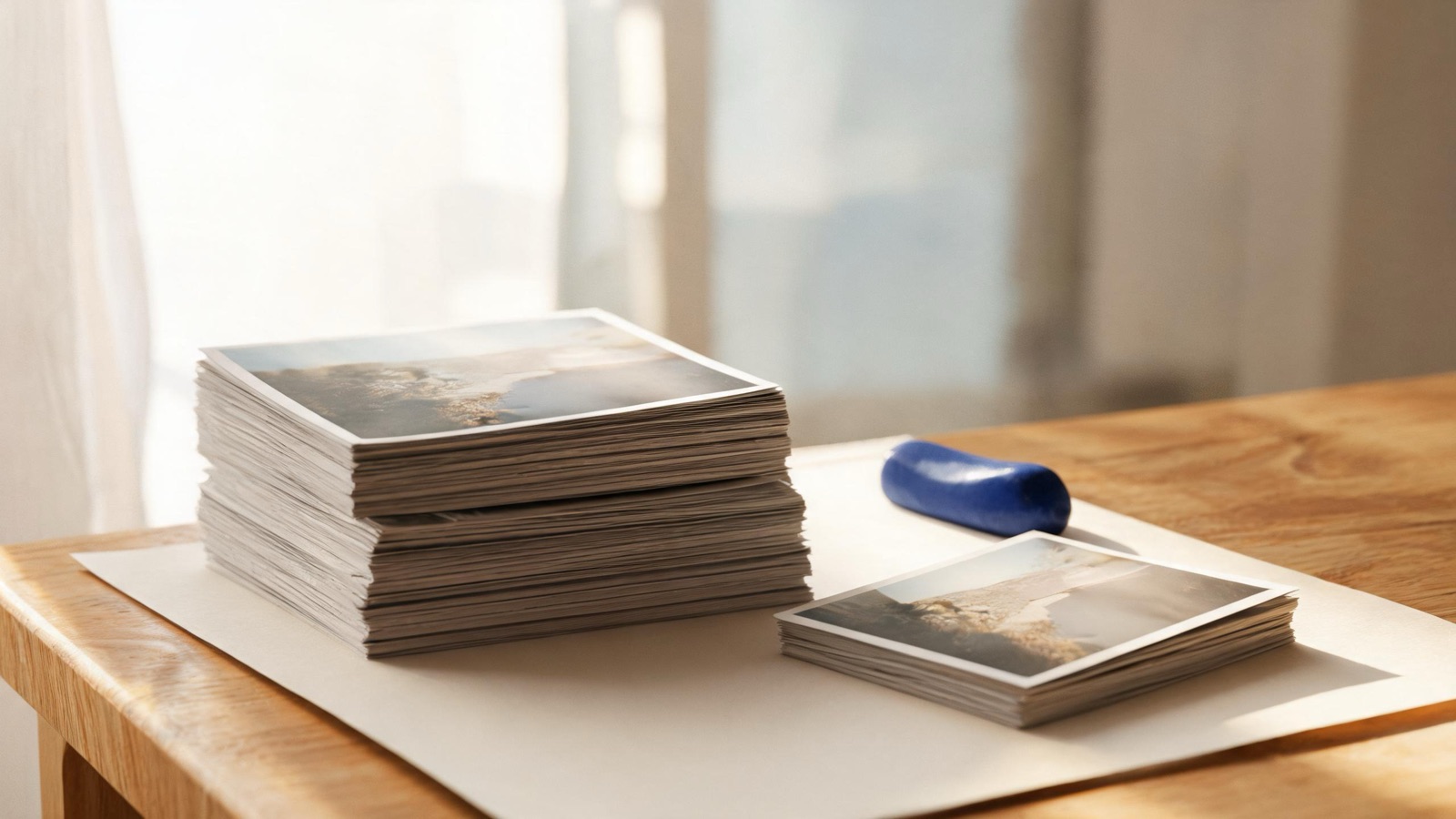
Compression re-encodes a picture you already opened, on the device you are using. PicZero is MSH's image toolbox. The compress page is https://msh.zone/image/compress. The pixels stay in the browser. There is no account and no per-file charge.
What the compress tool actually does
The page reads the files you chose, decodes them on a local canvas, and writes a new file in the format you picked: keep the original, JPG, WebP, or AVIF. Quality mode sets a percentage for lossy encoding. The default is 70%, and the slider runs from 10% to 100%. PNG has no quality knob. It can stay lossless, or the colors can be quantized to a smaller palette, about 128 colors by default.
The new file can only contain detail that is still in the source. If the original was already compressed, setting quality to 100% does not bring the lost detail back, and it usually makes a larger file. When the format stays the same and the result is not smaller, the tool returns the original bytes so you do not download a worse copy.
How to pick a quality
For a photo on a page or in a chat, start near 70%. Many photographs drop by about half between 60% and 75% and still look the same at normal viewing size. Screenshots, interface crops, and images with text are harsher on edges. Leave the quality higher, or use PNG quantization, instead of starting at 30%.
Run the first image in the list, look at the size before and after and at the edges of any text, then apply the same settings to the rest. A quality that suits a landscape can blur a screenshot.
When to use a target size
Use a target when a form, a shop, a signup page, or a chat app rejects the file for being too large. The default is 200 KB. You can type anything from 10 KB to 20480 KB. The tool searches for a quality close to that size. If quality alone is still over the target, it scales the long edge by 0.8 and encodes again, and it stops shrinking once the edge is about 320 pixels. A very small target will make a large photo smaller, not only blurrier.
For PNG, the levers are the palette and the dimensions, not a JPEG-style quality percentage. If you need the pixels unchanged, do not force a tiny target size.
Transparency, batches, and where the file goes
Keep PNG when you need transparency, or confirm that the WebP or AVIF path you chose still carries an alpha channel. JPG fills transparent pixels with a background color. In a batch, quality, target size, format, and rename rules are shared. Strokes you paint on one image are not copied onto the others. The longer note on folders is a folder of photos.
The original stays where it was. Download one new file, or compressed-images.zip for several. The result can stay in PicZero's list and go on to format conversion, crop, or watermark without a second trip to the disk. Removing a background is a different job: cut out locally.
What compression will not do
It will not add sharpness, restore a crop, or repair a photo beyond making the same picture into a smaller file. If the receiver also dictates a format, read convert an image locally and then decide whether to compress.
How to do it
- Open PicZero compress at https://msh.zone/image/compress.
- Drop images in, or choose several files or a folder.
- In quality mode, start near 70%. If the file must land under a limit, switch to target size. The default is 200 KB, and the field accepts 10 KB to 20480 KB.
- Keep the original format, or choose JPG, WebP, or AVIF. Do not choose JPG if you need transparency.
- Check the first image's size and edges, then apply the same settings to the rest.
- Download the new files, or a zip. The originals on disk are not overwritten.
Questions
Does compression upload the image?
No. Encoding happens in the browser tab you already have open. The page does not send the picture to MSH, and there is no account.
What quality should I use?
For photos on a web page, start near the default of 70%. A range of 60% to 75% is usually enough. The slider runs from 10% to 100%. Turning the quality up does not restore detail an earlier save threw away.
How does target size work?
You type a size in kilobytes. The default is 200 KB, and the allowed range is 10 KB to 20480 KB. The tool searches for a quality near that size. If the file is still too big, it scales the long edge by 0.8 and tries again, and it stops once the edge is about 320 pixels.
Can I compress a transparent PNG?
Yes. PNG output can stay lossless, or it can quantize the palette, about 128 colors by default. Keep PNG if you need the transparency. JPG fills transparent pixels with a background color. WebP and AVIF can be smaller, but transparency depends on the format you pick.
What if the new file is larger?
When the output format matches the source and the new file is not smaller, PicZero hands back the original bytes instead of a bigger copy. A file that was already compressed hard often will not shrink again.
Are the originals replaced?
No. Downloads are new files. Several images can be saved as compressed-images.zip. The copies in the folder stay as they were.
Guides
How to run the same edit on a folder of photos
Drop a folder into PicZero. Compression, conversion, crop and watermark settings apply to every file. The originals stay where they were.
How to convert image formats locally
PicZero converts JPG, PNG, WebP and AVIF in the browser. Pick the format for the job, preview the size, and download. The image is not uploaded.
How to remove an image background without uploading it
PicZero's cutout runs in the browser. It separates the subject, lets you fix the edge, and exports a transparent PNG or WebP. The photo is not uploaded.