Updates
A short note on a stack of photos
Set the options once, check the first result, then apply them to the rest of the list. The originals stay in the folder.
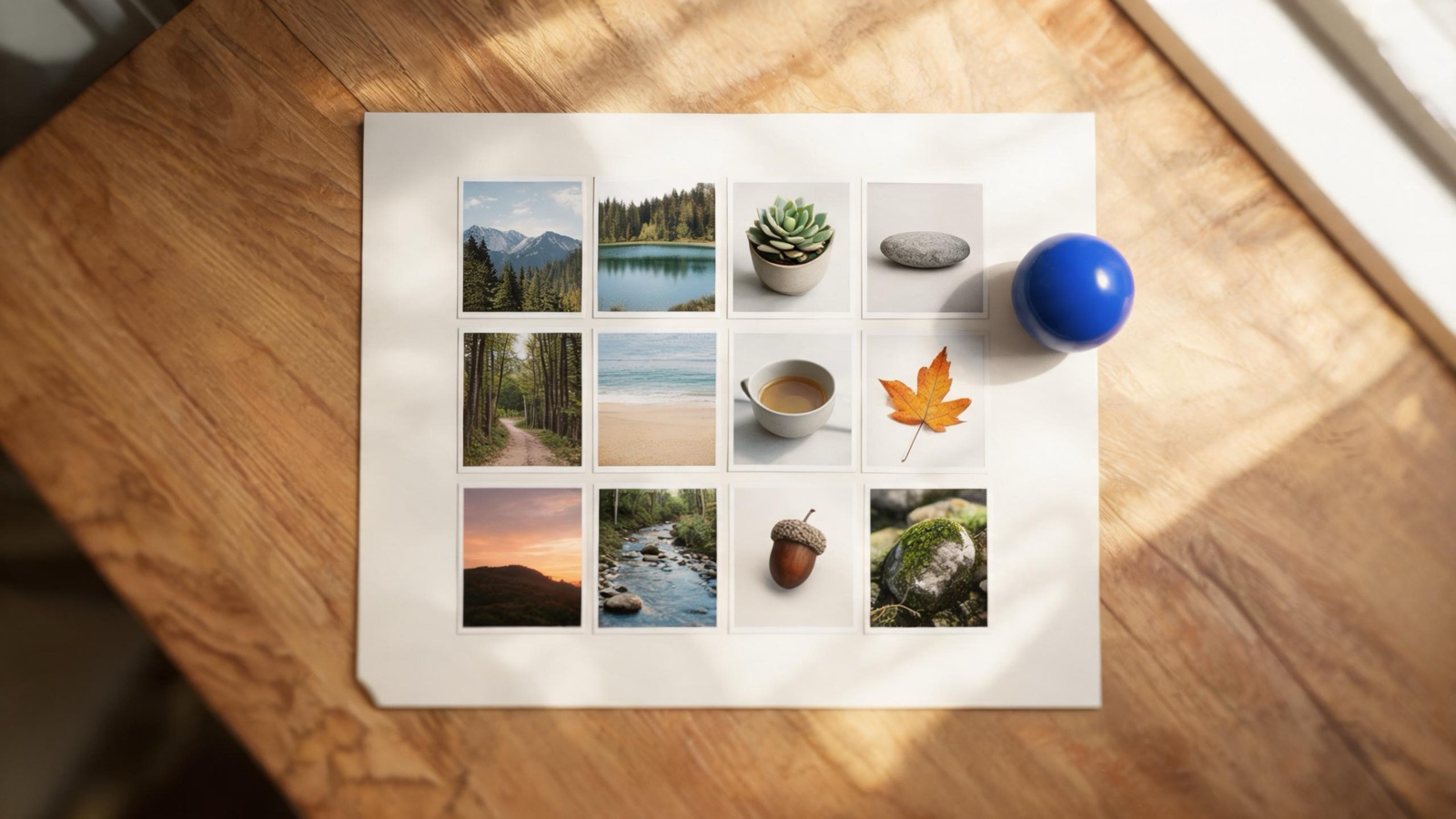
The image job that comes back most often is one choice applied to many files: one quality, one format, one crop, one watermark. PicZero keeps the files you added as a list in the current tab, so you do not repeat that choice on every image.
Look at the first one
Process the first image in the list before the rest. The compress page shows the size before and after. If the edges go soft, or the file is still over a form's limit, change the quality or the target kilobytes there, and only then apply it to the whole list. Do not put a portrait crop on a wide photo and hope. The full steps are in a folder of photos.
Where to start on quality, what the target-size range is, and the rule that a same-format result which is not smaller returns the original bytes, are in compress without uploading. If the receiver also requires JPG, PNG, WebP, or AVIF, continue with format conversion.
Settings can be shared. Strokes cannot
Quality, format, target size, crop, watermark, and rename rules apply to every image. Strokes you paint do not. Cutout keep and erase stay on the current photo. See cut out locally. Lock the preset on one representative image before a batch, and repair by hand only where it is needed.
The download is a new file
The originals stay in the folder. Save one new file, or a zip of many. PicZero does not write back to the path you dragged in. Close the tab before you download and the results in the list are gone. The originals on disk are still there.
Updates

The document tool follows the same rule
The Markdown toolbox lives at /markdown. Editing, preview, and conversion run in the browser, under the same rule as the image tools: the file is not uploaded.
Nothing in the photo leaves this device
PicZero reads the file you add and writes a new file beside it. There is no account, no usage cap, and no photo upload.
The official site is live, and PicZero moved to /image
msh.zone is now the official site. PicZero, the image toolbox, is served at /image. Older tool addresses redirect there.